Time Tracking Software
Simple project time tracking for consultancies, agencies, and other service businesses.
Employee time tracking turned into a powerful tool. Track time across tasks, projects, and clients. Invoice based on time entries, plan for workload, and people utilization.
needed
Integrated Task Time Tracking Software in ActiveCollab
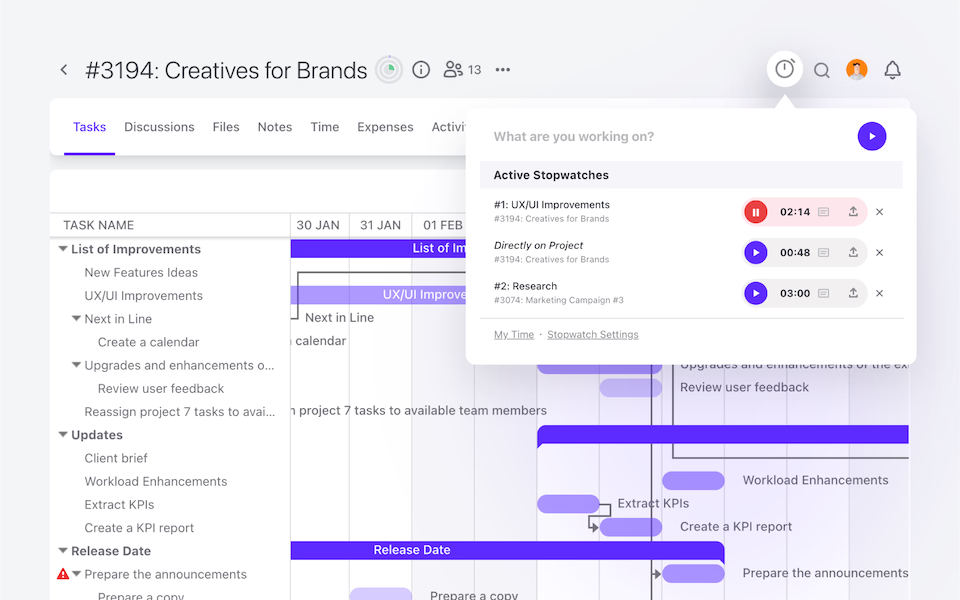
Track your work on a task wherever it’s the easiest.
Stopwatch in Desktop and Mobile Apps
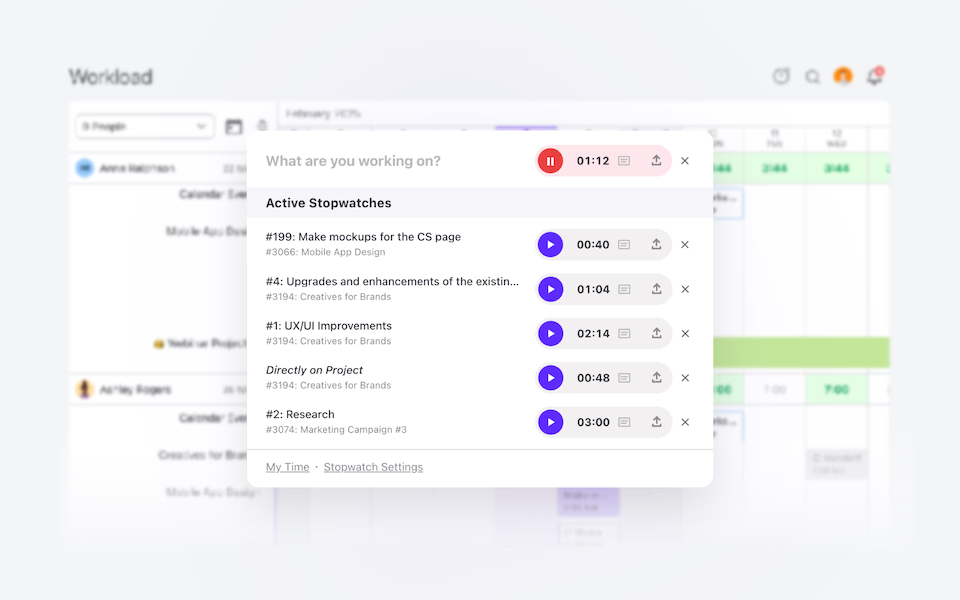
One click to start tracking your time wherever you are - in a task, project, desktop or mobile app. Assign the time entry to a task later.
Billable and Non-Billable Time Records
Include different time-record types depending on the task, client or project.
Individual Timesheets and Time Tracking
Understand time recorded by a single person—edit entries to see how it affects your daily capacity or a project budget.
Team Timesheets and Time Tracking
Account owners can see time entries across the organization, edit them, and monitor capacity and the paid/unpaid status.
Export Time-Based Reports
Use ActiveCollab Dashboard and Reports to export time reports per task, project or client.
"ActiveCollab helped in making the transition smooth when we were pushed toward home working and was one of the key factors in maintaining the quality of our work."
Interior Designer, Havelkadesign
"ActiveCollab sounded too good to be true. We went into our trial period with low expectations – to our surprise and delight, we were proven wrong."
Founder and Creative Director, JUICE Creative Group
"ActiveCollab allows our teams to ask questions, track and update statuses, report time, and communicate effectively and efficiently."
Director, Strategic Accounts, Xivic
"We've gotten way more efficient with our time management and communication, and a big part of that is because of ActiveCollab."
Founder and Managing Director, Rock Agency




Time-Off Management Tool - Part of ActiveCollab
Let your team members set their time off directly in ActiveCollab, so you can keep track of their availability, manage time-off requests better, and automate the process.
Task Key Dates and Time Estimates
Add task start and due dates, as well as time estimates, and see it immediately reflected in the assignee’s workload for better capacity planning and workload management.
Invoice your time entries and get paid
Create and send invoices based on your projects’ time-tracked expenses or charge a flat fee. Sync them with QuickBooks and get paid in seconds.

Time Reports
Understand who spends time on what. What project or client is bringing in the most value? See it by running this simple report in ActiveCollab. It only takes a few clicks.
↳ See how Dashboards and Reports work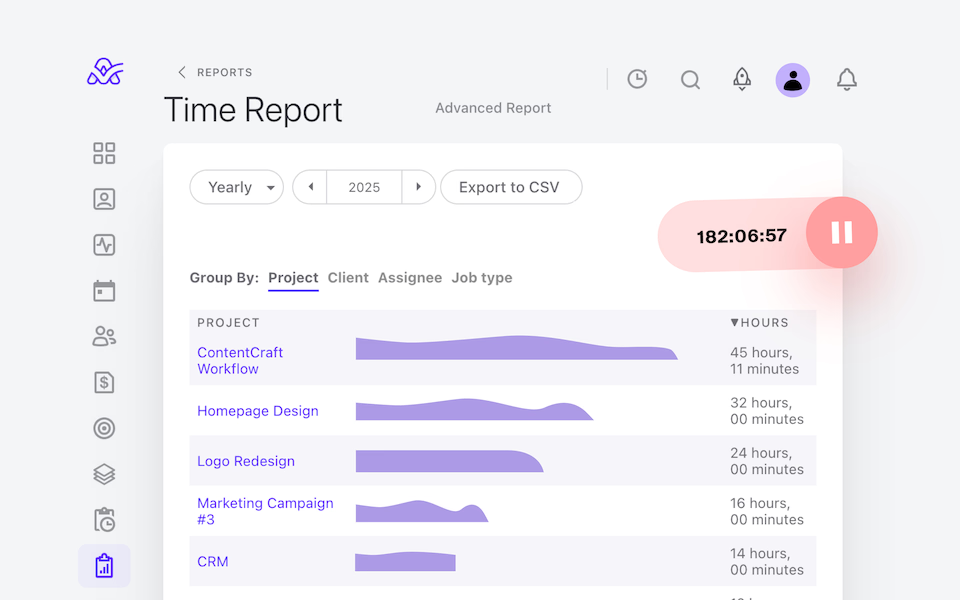
Success and Support
50K Teams
93%
Happiness Score
Frequently
Asked
Questions
Here is more info to help you decide. Contact our Customer Success team if you have other questions.
You’ll never have to guess how much time went into a project again!
ActiveCollab tracks every billable hour across tasks and projects, giving you a complete log of work. When it’s time to bill, you have accurate records that turn into invoices with ease. This way, clients see exactly what they’re paying for, and you avoid undercharging or awkward disputes.
You get paid for every hour worked, while clients appreciate the transparency!
Yes! With ActiveCollab, time tracking happens where work happens.
You can start a stopwatch, log hours manually, or update task estimates without leaving the platform. That means no extra apps, no juggling spreadsheets, and no wasted clicks!
The whole process is designed to fit naturally into your workflow, so you and your team can stay focused on delivering results instead of chasing timers. Naturally, this keeps projects moving forward while still capturing every billable minute.
Absolutely! Tracked hours flow directly into ActiveCollab’s invoicing system. With just a few clicks, you can turn logged time into detailed, professional invoices.
No more exporting data, double-checking spreadsheets, or doing manual math!
This automation ensures clients are billed accurately and on time, and you save hours of administrative work. The best part? It creates a seamless bridge between your team’s productivity and your agency’s cash flow, so you can focus more on growing the business and less on paperwork.
Yes, and it’s one of the most useful features for managing projects. You can set time estimates for tasks at the start, then see how those estimates compare to actual logged hours.
This helps you spot overruns early, manage scope creep, and make smarter predictions for future projects. Naturally, it also helps you understand your team’s capacity better. Over time, this feedback loop improves accuracy in planning, which means fewer surprises, happier clients, and more predictable margins for your business!
Reports in ActiveCollab go deep. You can slice and dice tracked time by client, project, or even down to an individual team member. This gives you the clarity to see where hours are really going, whether that’s profitable client work or tasks that drain resources!
The insights help you adjust workloads, refine processes, and improve profitability. Basically, you get hard data to back up your decisions and the ability to prove your team’s value to clients whenever needed!
By default, tracked hours stay internal, so you control visibility. But when you want transparency, you can share logged hours through reports or directly on invoices.
This way, clients see what’s relevant without opening the door to every internal detail. It’s about balance – giving clients confidence that hours are tracked accurately, while protecting your team from unnecessary scrutiny.
You decide what to show and when, ensuring trust and professionalism without losing control over your internal workflows.
Yes, and that’s where it gets powerful!
Tracked time connects directly with workload and capacity planning tools, so you see who’s spending hours where, who’s overloaded, and who’s available for new work. This prevents burnout, ensures fair distribution of tasks, and helps managers plan more strategically.
Instead of reacting to problems late, you spot them early. Naturally, that means happier teams, better productivity, and smoother project delivery, with no blind spots in how time and resources are actually being used.